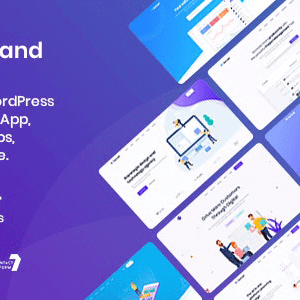
Saasland – MultiPurpose Theme | vs 3.7.3

₦5,500.00
- Quality assurance by WPMagic Click
- Free future updates
- Fast download
- Priority support

Description
Saasland MultiPurpose Theme
Saasland MultiPurpose Theme is a creative WordPress theme for saas, software, startup, mobile app, agency and related products & services. SaasLand is loaded with tons of features, elements & blocks, options that give its users real flexibility to create a dynamic, professional website in no time. It is 100% responsive and looks stunning on all types of screens and devices. Saasland MultiPurpose Theme is a better way to present and promote your start-up or boosting your current agency website.
Saasland MultiPurpose Theme Features
- 38+ Home pages, 100+ total pages, 250+ unique elements/blocks
- Full Gutenberg editor compatibility
- WordPress 5.x compatible
- Full WooCommerce support
- Slider Revolution plugin included (Save $26)
- Demo created for multi-niche with niche specific elements
- Elementor Drag-n-Drop Page Builder
- Robust and solid user experiences (UX)
- State-of-the art visual design
- Clean, modern and beautiful design
- Well organized and powerful admin panel
- Powerful theme options
- Based on Twitter Bootstrap 4.x Grid System
- Contact Form 7 integrated
- WPML – full multilingual support
- RTL – full support for Right To Left languages
- WooCommerce Wishlist Plugin Integrated
- Mailchimp integrated
- Instagram Integrated
- Google Fonts
- Various types of font icons
- And More…
How To Use
🔹 FOR WORDPRESS THEMES
HOW TO USE
- After Purchase on wpmagicclick.com.ng
- Login to wpmagicclick.com.ng
- Go to your My account
- Go to Download
- Download the plugin ZIP file.
- Go to WordPress Dashboard
- Appearance
- Themes
- Add New
- Upload Theme.
- Upload the ZIP File
- Click Install
- Activate after Installation
- Import demo content (if included).
- Customize via Appearance → Customize or Elementor.
🔹 FOR WORDPRESS PLUGINS HOW TO USE
- After Purchase on wpmagicclick.com.ng
- Login to wpmagicclick.com.ng
- Go to your My account
- Go to Orders
- Download the plugin ZIP file.
- Login to Your WordPress Dashboard
- Go to Plugins
- Add New
- Upload Plugin.
- Upload the ZIP and click Install → Activate.
- Open the plugin settings from the left sidebar menu.
- Configure options and start using.
Update Notification