Bauer – Construction and Industrial Theme | vs1.33
- Quality assurance by WPMagic Click
- Free future updates
- Fast download
- Priority support

Bauer Construction and Industrial Theme
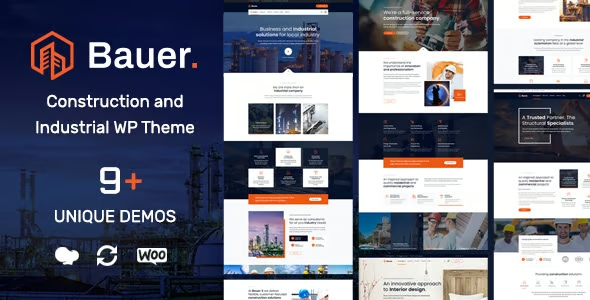
Bauer is a premium WordPress theme designed specifically for construction and industrial companies. This theme offers a modern, robust, and professional design tailored to showcase construction projects, industrial services, and company expertise. Bauer is ideal for construction firms, industrial suppliers, and related businesses looking to create an impressive and functional website that highlights their projects and services.
What is Bauer Construction and Industrial Theme?
Bauer is a professional-grade theme built to meet the unique needs of construction and industrial businesses. It provides a range of features and customization options that allow you to create a fully functional and visually appealing website. With its focus on aesthetics and usability, Bauer helps you present your projects, services, and expertise in a way that engages visitors and encourages them to explore your offerings.
Key Benefits of Bauer
- Specialized Design: Offers a design tailored specifically for construction and industrial companies, ensuring that your website looks modern, professional, and appealing to your target audience.
- User-Friendly: Provides an intuitive and easy-to-navigate interface, enhancing the user experience and making it easy for visitors to find the information and services they need.
- Highly Customizable: Allows for extensive customization, enabling you to match the theme’s appearance with your brand’s identity and requirements.
- SEO Optimized: Built with SEO best practices, helping to improve your website’s visibility on search engines and attract more organic traffic.
Highlighted Features of Bauer
Bauer includes several key features designed to enhance your construction and industrial website:
- Pre-Designed Templates: Comes with a variety of pre-designed templates for different types of pages, such as project listings, service descriptions, and blog posts, helping you get started quickly and efficiently.
- Drag-and-Drop Page Builder: Includes a powerful drag-and-drop page builder, allowing you to create custom layouts and designs without any coding knowledge.
- Responsive Design: Ensures that your website looks great and functions well on all devices, including desktops, tablets, and smartphones.
- Project Portfolio: Provides a robust project portfolio feature, allowing you to showcase your construction and industrial projects with detailed descriptions, images, and videos.
- Service Pages: Enables you to create comprehensive service pages for your construction and industrial services, including detailed descriptions, pricing, and calls to action.
- Blog and News: Includes a blog section where you can publish industry insights, project updates, and company news, positioning yourself as a thought leader in the construction and industrial field and improving SEO.
- Testimonials and Reviews: Allows you to display client testimonials and reviews, building trust and credibility with potential clients.
- Event Calendar: Provides an event calendar feature to promote workshops, seminars, and other industry events, keeping your audience engaged and informed.
🔹 FOR WORDPRESS THEMES
HOW TO USE
- After Purchase on wpmagicclick.com.ng
- Login to wpmagicclick.com.ng
- Go to your My account
- Go to Download
- Download the plugin ZIP file.
- Go to WordPress Dashboard
- Appearance
- Themes
- Add New
- Upload Theme.
- Upload the ZIP File
- Click Install
- Activate after Installation
- Import demo content (if included).
- Customize via Appearance → Customize or Elementor.
🔹 FOR WORDPRESS PLUGINS HOW TO USE
- After Purchase on wpmagicclick.com.ng
- Login to wpmagicclick.com.ng
- Go to your My account
- Go to Orders
- Download the plugin ZIP file.
- Login to Your WordPress Dashboard
- Go to Plugins
- Add New
- Upload Plugin.
- Upload the ZIP and click Install → Activate.
- Open the plugin settings from the left sidebar menu.
- Configure options and start using.